 BTGuard
Windows
Setup Instructions
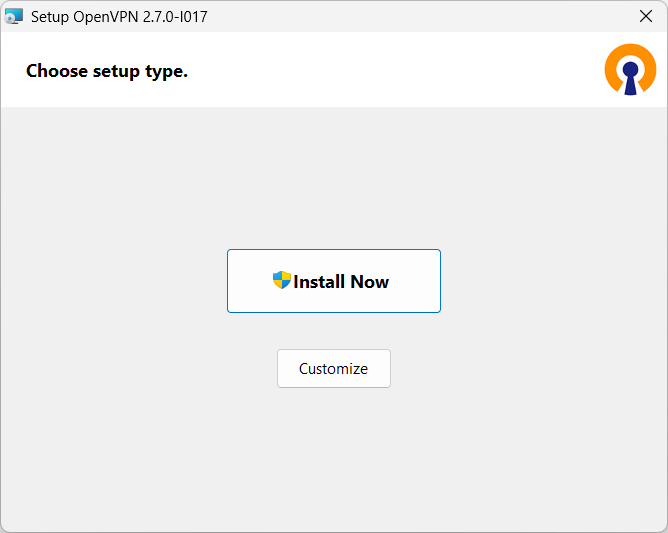
- 1. Download the OpenVPN Installation Program or go to the Official Download Page
- 2. Double-click on the file you just downloaded to install
- 3. HIT NEXT, CONTINUE, AND CONFIRM ALL STAGES OF INSTALLATION
- Download the OpenVPN BTGuard Configuration executable file. (ZIP)
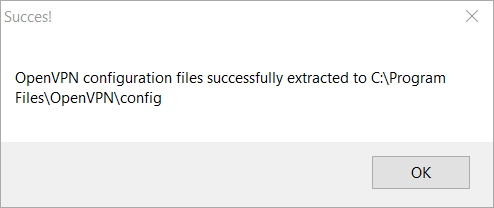
- 4. Open openvpn_auto_config.exe.
- 5. Click on Ok.
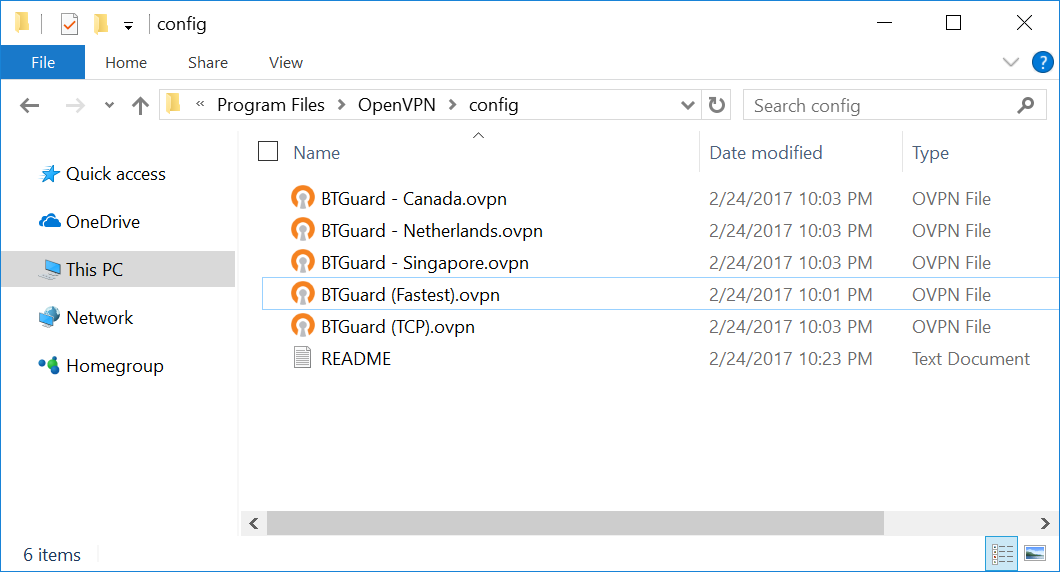
- 6. Go to C:\Program Files\OpenVPN\Config
If non-existant then go to C:\Program Files (x86)\OpenVPN\Config
You should have the following files in the Config folder.
If the Self-Extractor didn't work, download the ZIP file and move those files manually. If it won't allow you to unzip the files directly in the Config folder, try extracting them to the desktop then moving them to the folder
How to Connect

- 1. On the Desktop, double-click OpenVPN GUI to start.
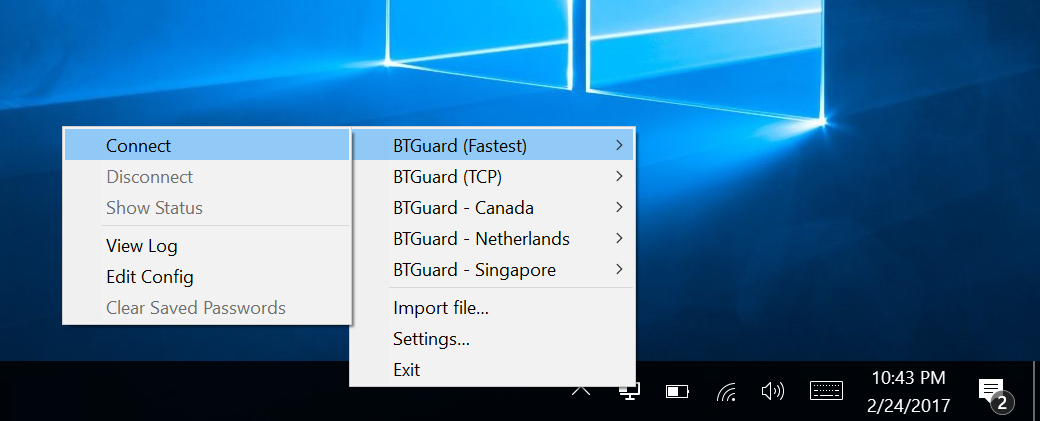
- 2. RIGHT CLICK the OpenVPN icon in the Windows system tray, select which server you'd like to connect to and hit Connect
If BTGuard (Fastest) doesn't work, please try BTGuard (TCP). All Config files use the UDP protocol except BTGuard (TCP).
-
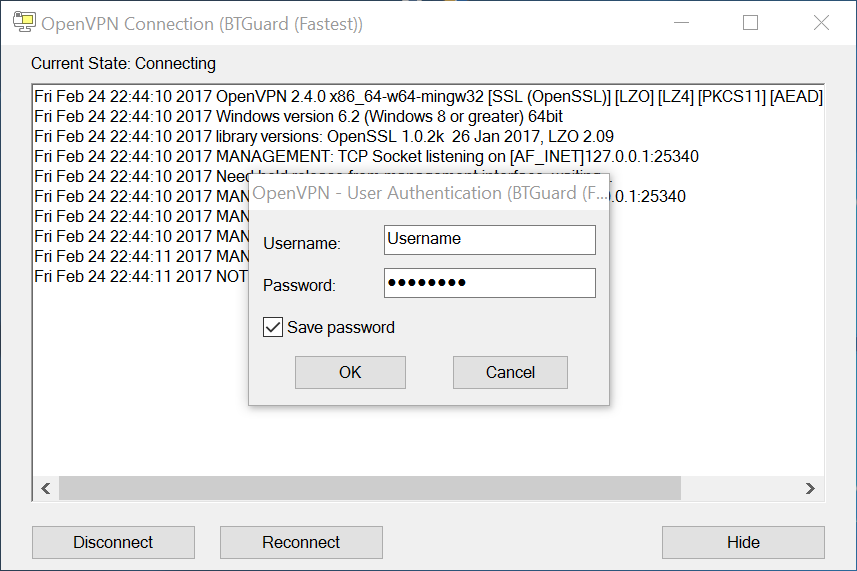
3. Enter your BTGuard username & password and hit OK
Checkmark Save password if you'd like.
Both username and password are case sensitive. Make sure not to add/forget Capital Letters.
You are now connected!