BTGuard
macOS
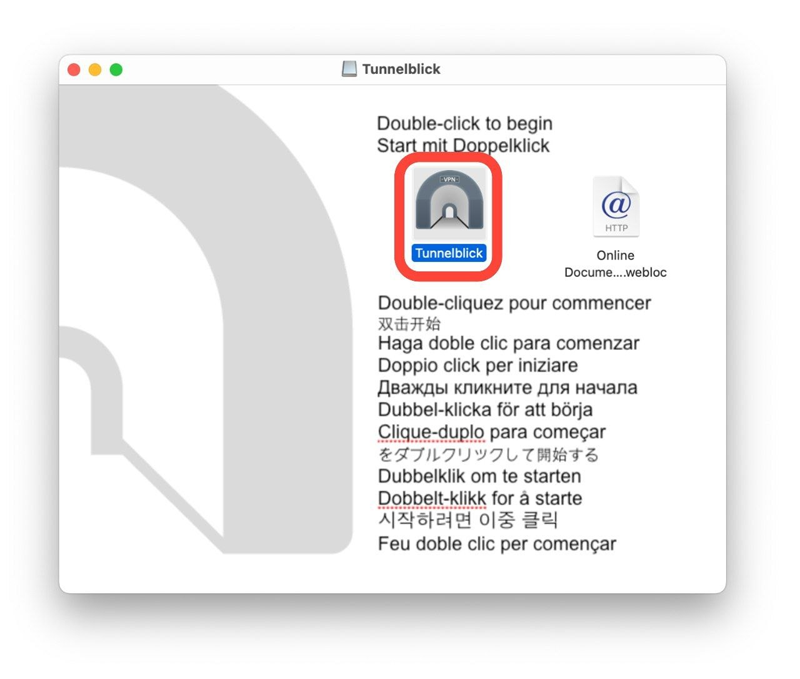
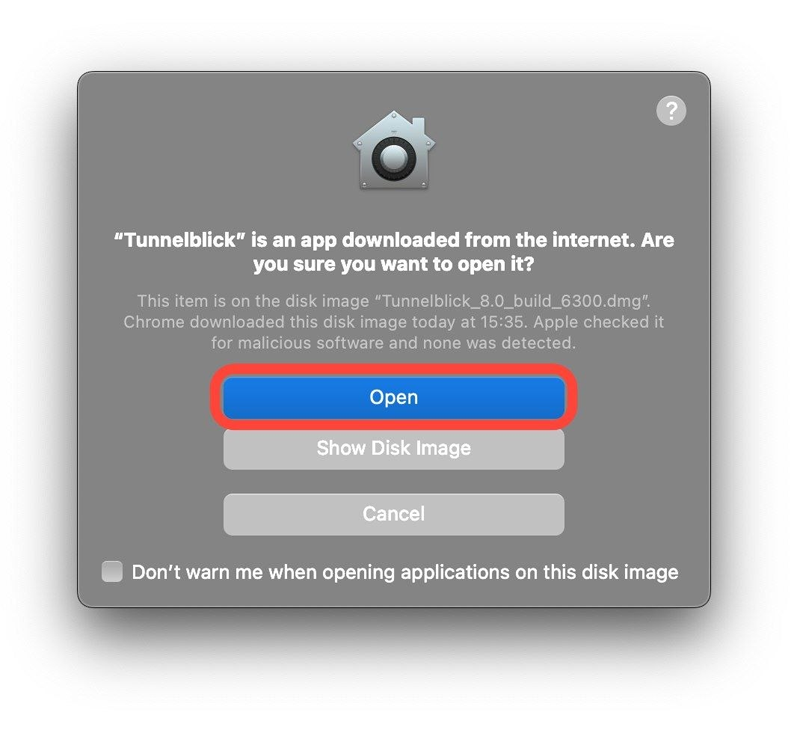
- 2. Run the downloaded file and click on Open.
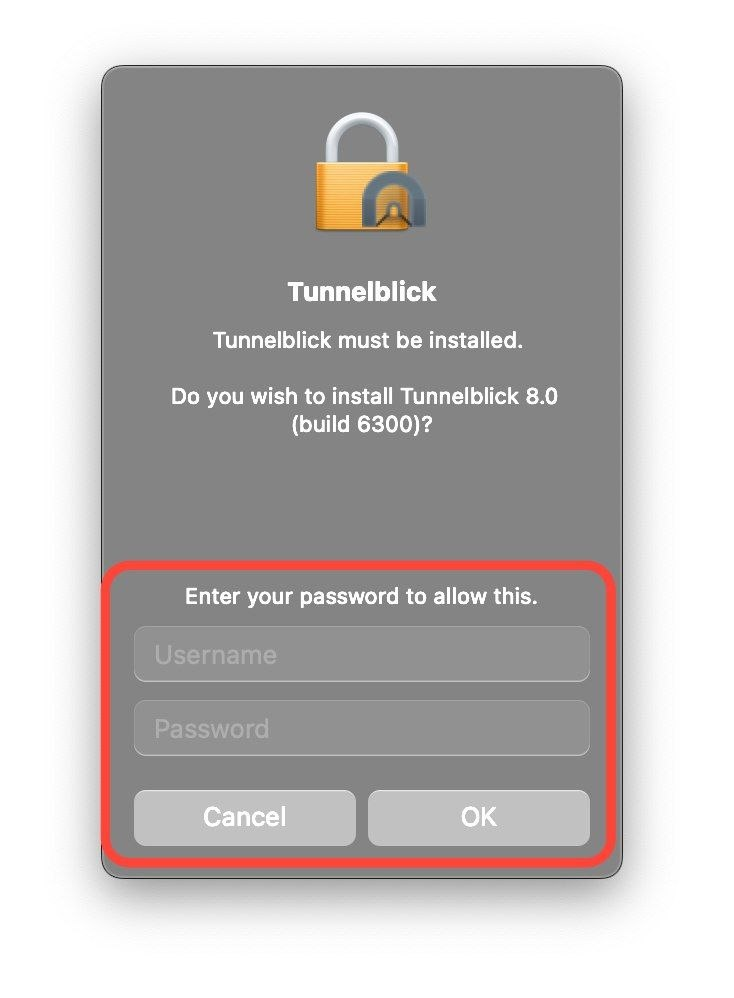
- 3. Enter your Mac password and hit OK.
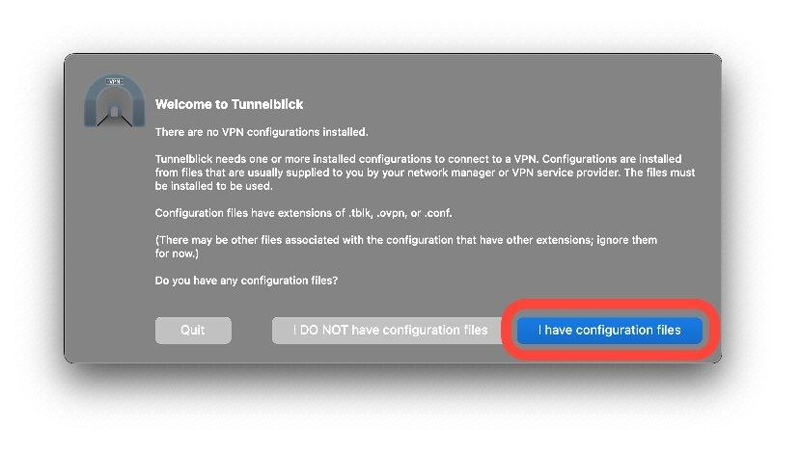
- 4. Click on I have configuration files.
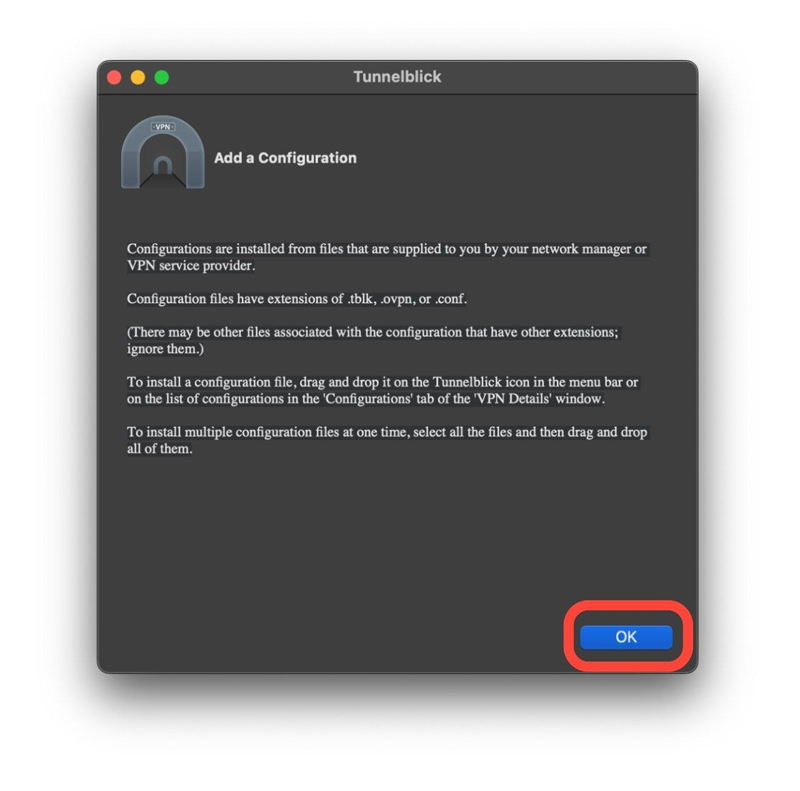
- 5. Click OK.
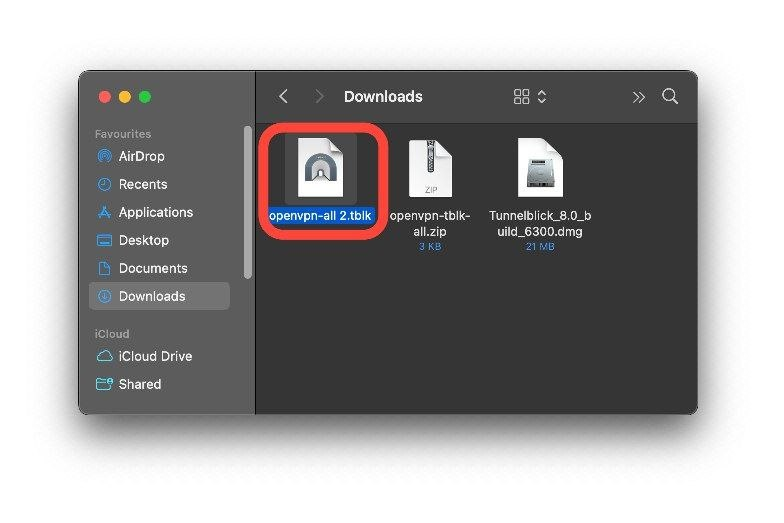
- 6. Download the OpenVPN BTGuard Configuration Zip and open it.
- 7. Double click on openvpn-all.tblk
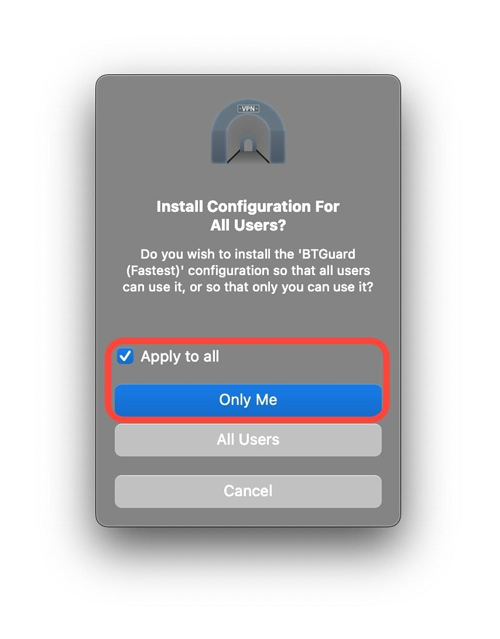
- 8. Pick whichever you prefer depending on your needs.
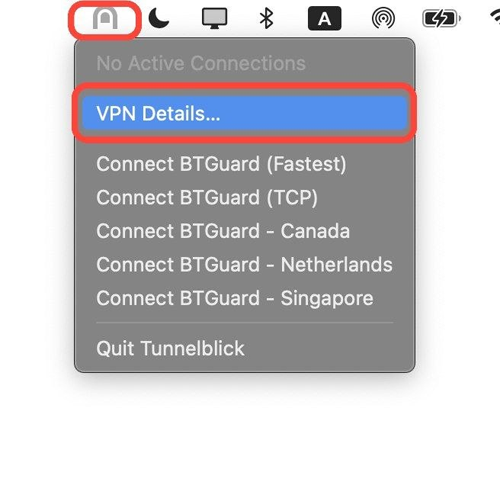
- 9. Find the Tunnelblick icon in your menu bar (top right), click on it and select VPN Details.
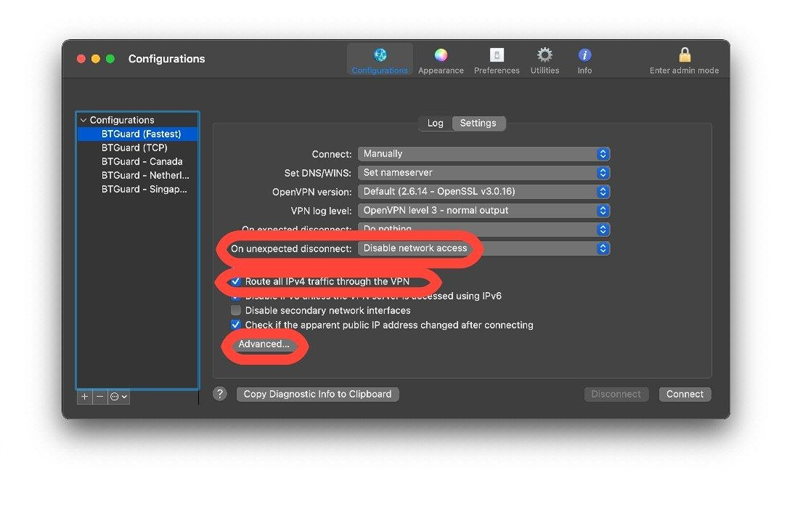
- 10. Select one of the configurations on the left and click on Settings.
- 11. On Unexpected disconnect select Disable network access (this is a kill switch to make sure you only use VPN)
- 12. Check Route all IPv4 traffic through the VPN.
- 13. Click on Advanced...
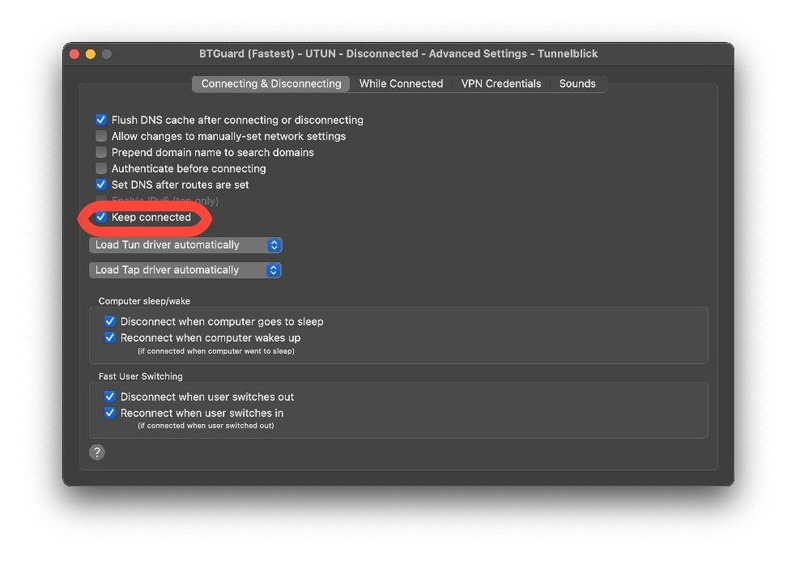
- 14. Check Keep connected.
- 15. Repeat steps 10 to 14 for each configurations.
How to Connect
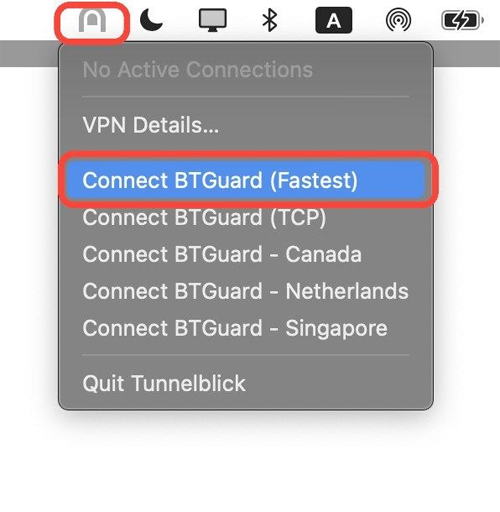
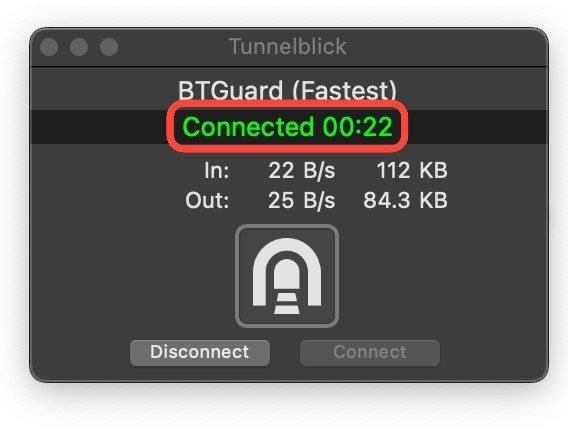
- 1. Click on the Tunnelblick icon in the menu bar and select Connect BTGuard (Fastest) or any of the other servers.
If BTGuard (Fastest) doesn't work, please try BTGuard (TCP). All Config files use the UDP protocol except BTGuard (TCP).
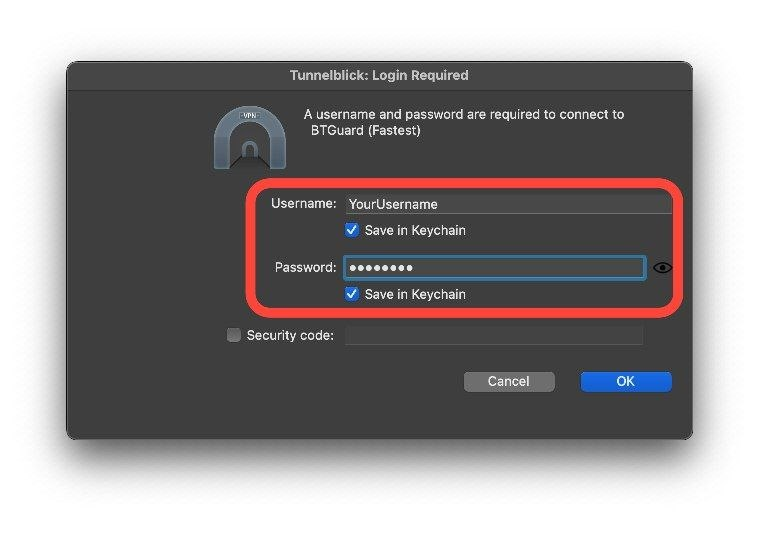
- 2. Enter your BTGuard username & password and hit OK.